
Agelong Tree 6 Help
User Tools
General info
Data manipulation
Family tree
Reports
Files manipulations
Licensing
Application install and uninstall
Extra
Table of Contents
Working with the cloud
Starting with version 6.2, the “Agelong Tree” app allows you to save data to your personal Google Drive cloud and download it from your personal Google Drive cloud. If you don't have a Google account, you can create one for free. Your family tree data file is saved in “Agelong Tree” folder which is located in the root folder of your Google Drive. Access to your personal cloud, and therefore to “Agelong Tree” folder, is only available to those who has the login and password for the Google Drive account you're using. Your family tree doesn't become public when stored in your personal Google cloud storage.
Save a data file to the cloud
To save the current data file to the cloud, follow these steps:
1. Click “File” menu in the main program menu.
2. Select “Save to cloud as…”.
3. Click “Google Drive”.
4. A browser window will open where you will need to sign in to your Google Drive account. After successfully signing in, you can close the browser window.
5. Enter a name for the file and click “OK”
Open a data file from the cloud
To open a data file from the cloud, follow these steps:
1. Click “File” menu in the program's main menu.
2. Select “Open from Cloud”.
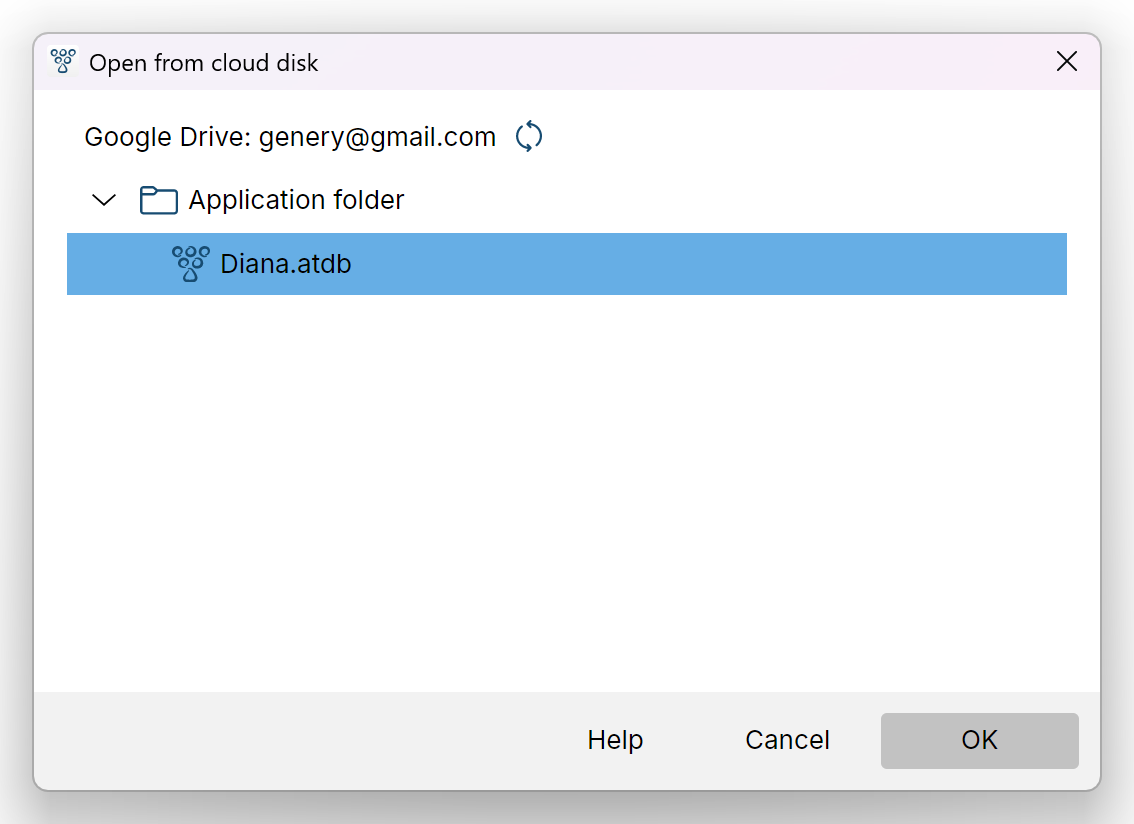
3. Click “Google Drive”. The first time you access the cloud from Agelong Tree, you'll need to sign in to your Google Drive account in a separate browser window. You can then close the browser window.
4. Select the file you want to open and click “OK”.
More tips
To switch the account press the  button.
If there is a clock  icon next to the file name, then this file is now open in Agelong Tree. If it is opened not by you but by other user who has access, then the file will be in read-only mode for you, you will see the
 Read only sign. If the clock icon or read-only mode remains when all other relatives have closed Agelong Tree, restart Agelong Tree. If this does not help, you can manually delete the lock file from Google Drive folder through your browser. The lock file has the same name as the data file, with the addition of “.~lock”. When deleting the lock file, make sure that no other user actually has the data file open in Agelong Tree.
How to work together on a family tree using the cloud
Situation: you and your relative have “Agelong Tree” app, version 6. You need to:
1. Create a Google Drive account that will be used by both of you.
2. Save your data file to the cloud in the created account.
3. Tell your relative the username and the password for the created account, now it is your common account.
4. Your relative can open your data file in their “Agelong Tree” app from your common cloud account and edit it.
5. It's best to agree to take turns to work on the file: while one person is working, the other person won't be able to edit the file.
- en
- ru