
Agelong Tree 6 Help
User Tools
General info
Data manipulation
Family tree
Reports
Files manipulations
Licensing
Application install and uninstall
Extra
How to print a tree
To print, you need to save the tree in one of the supported formats (the “Save” button on the panel to the left of the tree). The best print quality can be obtained from the PDF format. The PDF save settings open after you enter the name for the PDF file.
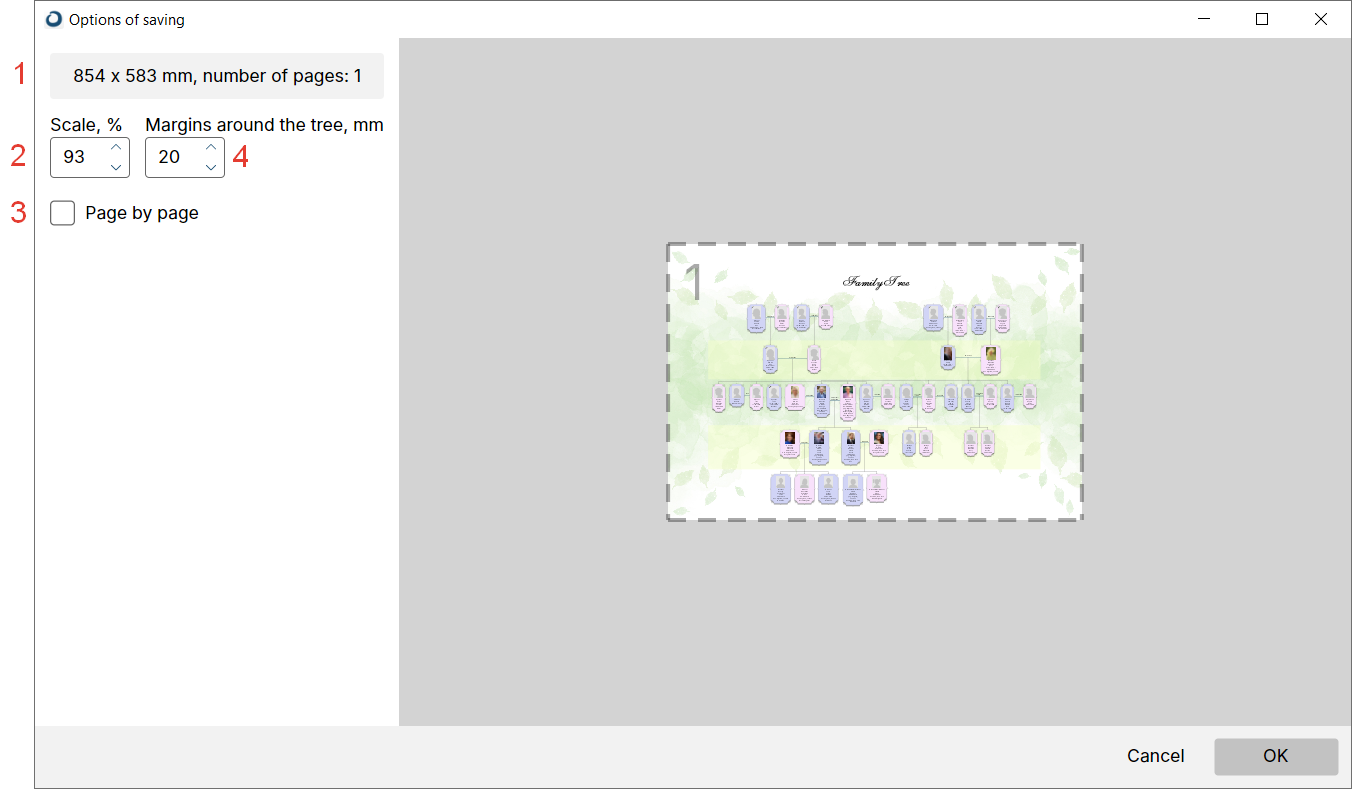
If you plan to print on a roll, then you need to save it to PDF without dividing into pages (3). By changing the scale (2), you can select the desired page size. It is useful to know the width of the roll on which you plan to print, and choose the size so that the tree fits on the roll in height. The size of the tree (1) is given in millimeters. The margin around the tree in millimeters (4) is the indentation from the edge of the page to the content.
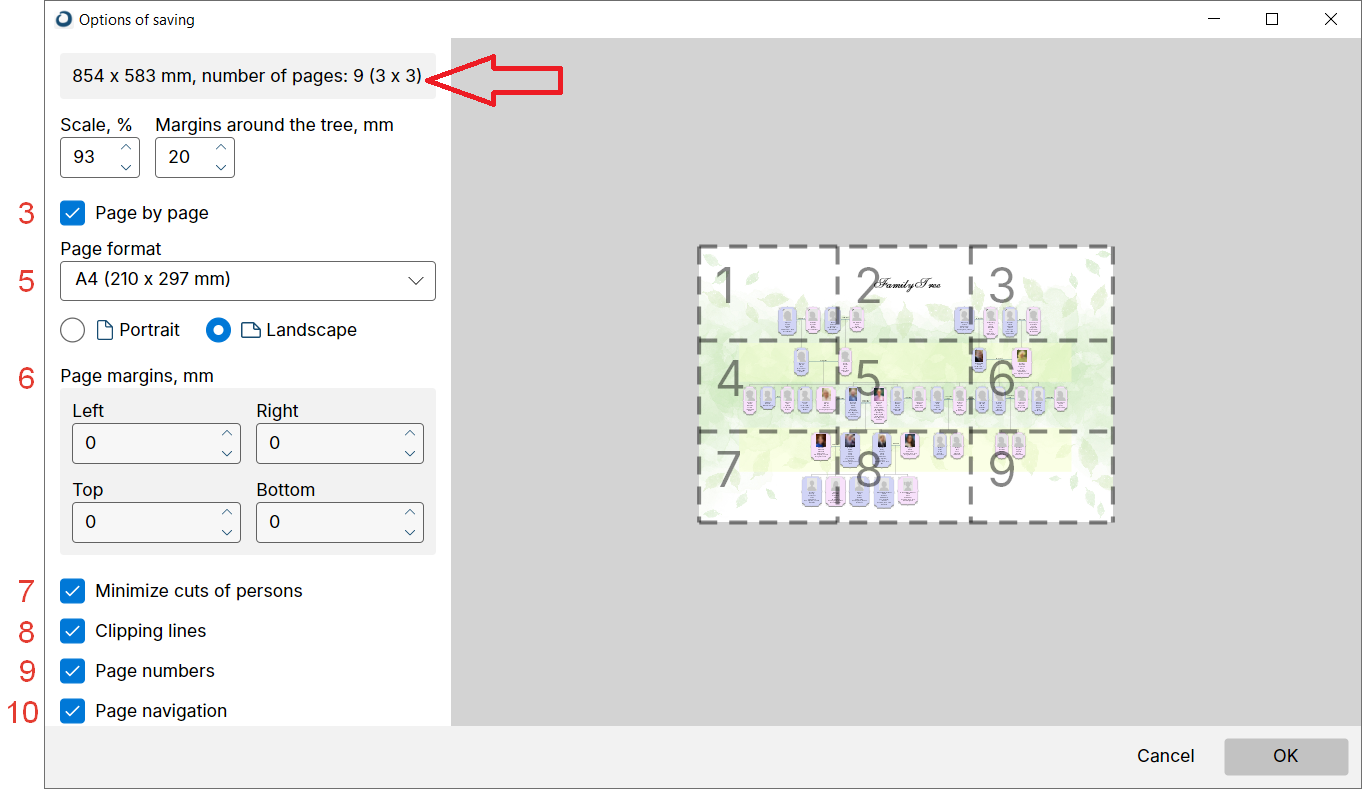
If you plan to print on large sheets of paper, then in the save settings you need to select “Page by page” (3) and set the sheet size (5), the program will show how many sheets the tree will take (red arrow). By gradually changing the scale (2), you can achieve the best possible location of the tree on the sheet/sheets. You can also change the paper orientation from portrait to landscape or vice versa.
It is not recommended to set the scale (2) to less than 70%, as the font (the default size) in the nodes will be small. For rough printing, you can use the A4 page format and print the tree on your home printer, then glue the sheets together. For convenience, you can display clipping lines (8), page numbers (9), and add page navigation (10). The “Minimize cuts of persons” function (7) reduces the number of clipping lines passing through the tree nodes.
- en
- ru