
Agelong Tree 6 Help
User Tools
General info
Data manipulation
Family tree
Reports
Files manipulations
Licensing
Application install and uninstall
Extra
Error when starting Agelong Tree 6
When after successful installation there appears a critical error or Agelong Tree does not start, please check the user access rights to the configuration folders and to the program cache.
For macOS and Linux these are .config and .local folders in the user's Personal (Home) folder.
In this standard program settings folder, Agelong Tree 6 stores the user's personal settings and the program cannot work without access to it. Usually the folder access rights do not change but there are cases when this happens: if the folder has been restored from a different device or copied via Internet or after some application exposure (such as antivirus or cleaning software), so it is possible that the rights are set incorrectly.
What to do on macOS
1. Go to the Info of the .config folder:
1.1. Open Finder
1.2. Through the menu at the top, click Go → Home
1.3. Press and hold Shift Command and press dot (.) to display hidden files
1.4. Then open the Info of the folder .config: use the mouse cursor to select the .config folder and press Command and I (i) or press File → Get info
If the .config folder is not there, but other hidden files are visible, create a .config folder in the usual way.
Then open the Info of the folder.
1.5. In the bottom of the Info window please click “Sharing & permissions” (see screenshot in Step 2) , and check that the current user has Read & Write rights.
If the current user is not in the list or if the current user has Read only right, go to Step 2.
2. In the bottom of the Info window click the lock symbol, and enter your password in the the request window for changing access rights.
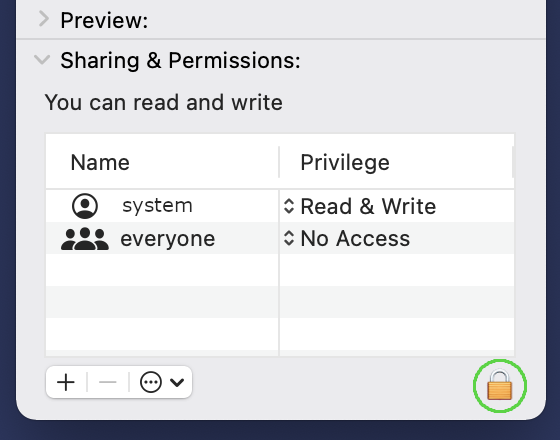
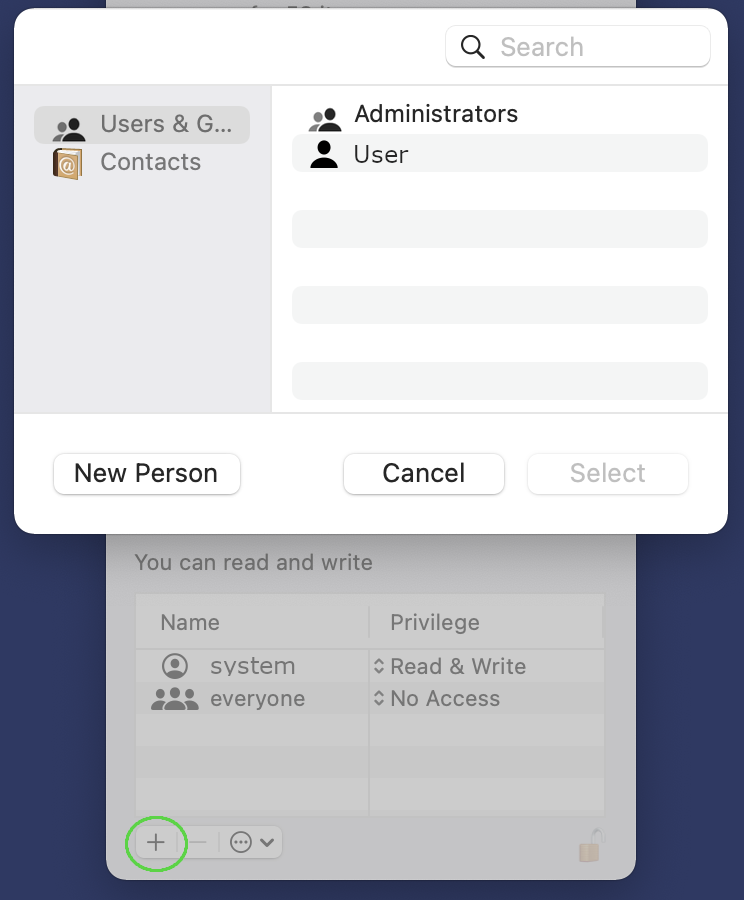
3. Press the + symbol in the bottom, choose the current user name and press “Choose”
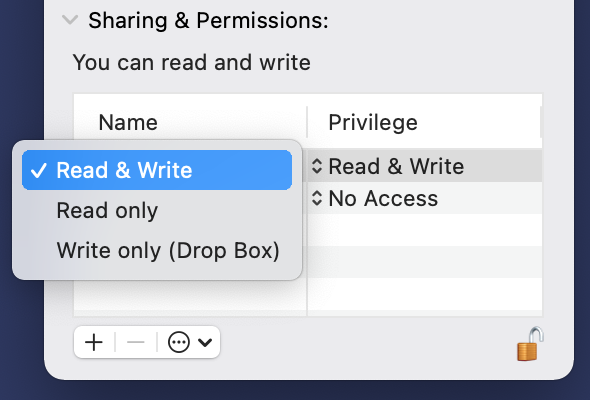
4. For the added user click rights and choose Read & Write.
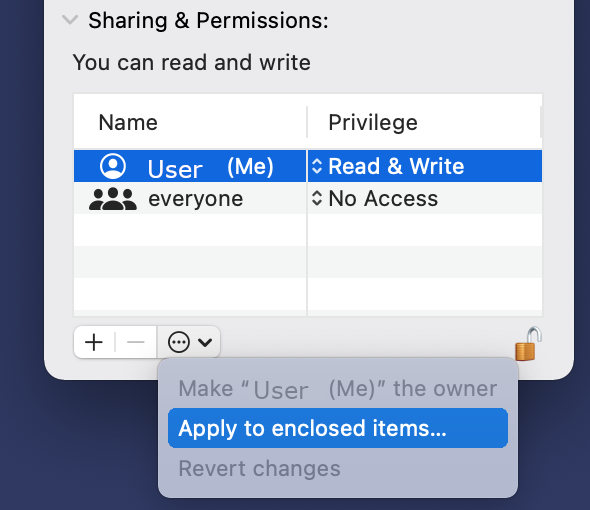
5. Choose the line with the added user and click the tree dots in the bottom, choose Apply to enclosed Items… and click OK.
6. Repeat the same actions for folder .local, see Steps 1-5.
7. Make sure that the rights are set correctly, and then launch Agelong Tree 6
- en
- ru